How request for new OTP
Prerequisites
- Make sure you have your student number (printed on your admission letter) and your mobile phone holding the number that is registered on your student portal or as updated by the EC representative at your campus.
- Mobile phone or laptop with internet access
- You can download and Android app from here
STEP 1:
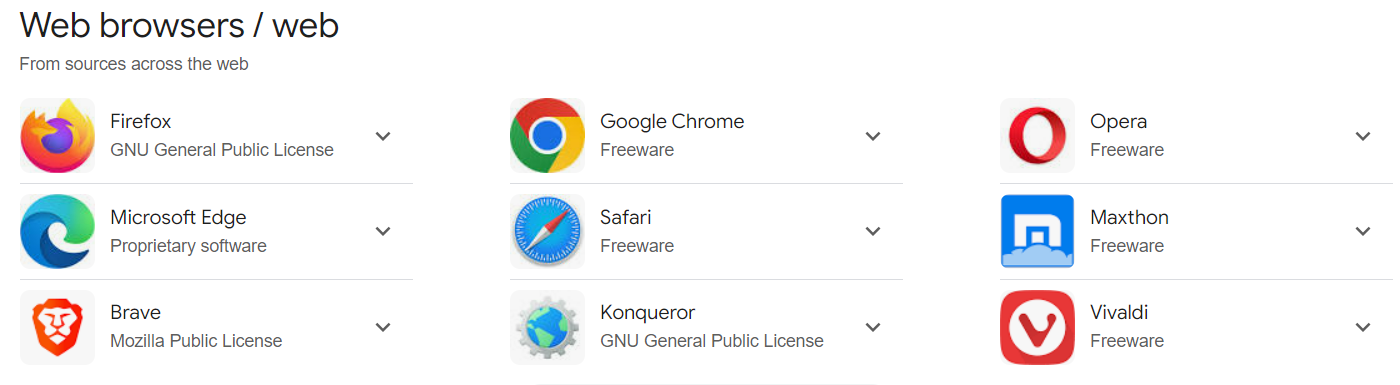
Open the browser of your choice as listed below either on laptop or phone
STEP 2:
On the search bar, type https://ivote.busitema.ac.ug and search. For the android app, the login page will just load.

STEP 3:
The login page will open as shown below, enter your student number (230040…) as your username, then enter your password. (For the first time login, use your student as both the username and password)
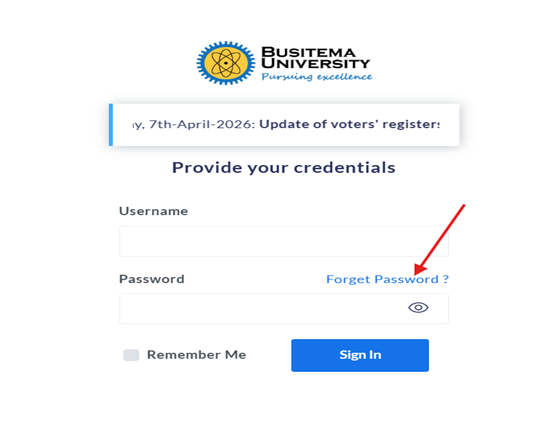
Click on forget Password as shown above in the image
STEP 4:
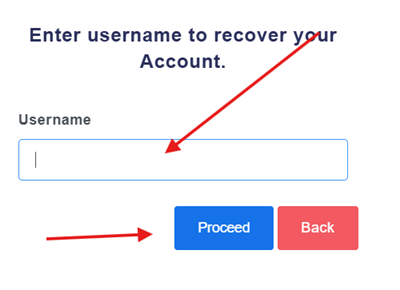
On the next page, enter your username (which is the student number) and click proceed button
STEP 5:
On the next page, the link for requesting a new OTP will show as shown below
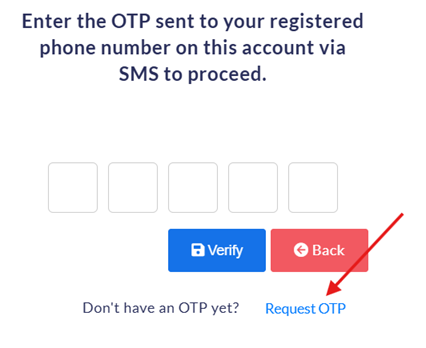
Click on Request OTP . The New OTP will be sent to your registered phone.
Now click Back if you don’t want to change the password or proceed and change the password.
For more information; Go to https://dicts.busitema.ac.ug/support/chat and type in your question, the ICT team will be very positive to help and guide you.